 Ledgermere
Bank files to QBO, QFX, IIF or Xero – merged, de-duplicated, never uploaded
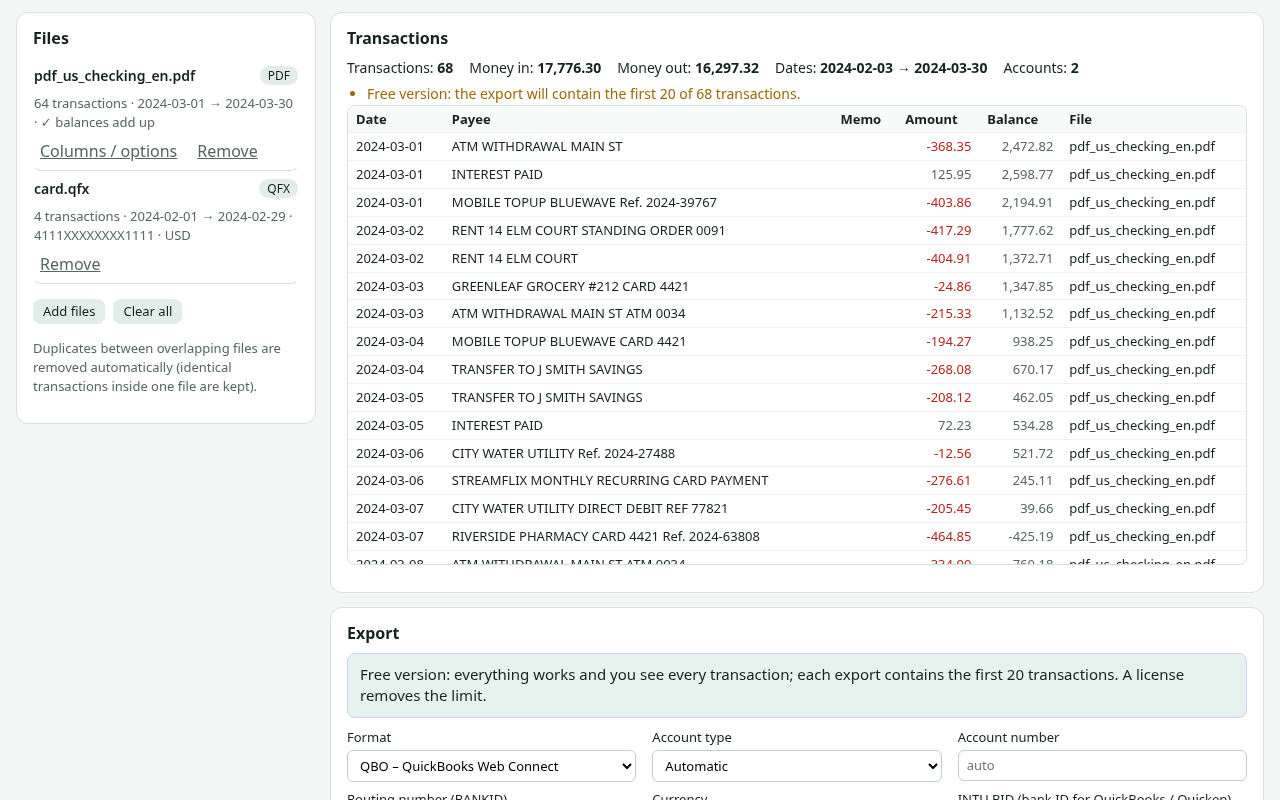
Ledgermere turns PDF statements, CSV and Excel exports, OFX/QFX/QBO, QIF, MT940, camt.052/053/054, BAI2 and Norma 43 into the file your accounting software imports: QBO (QuickBooks Web Connect), QFX (Quicken), IIF (QuickBooks Desktop), QuickBooks Online and Xero CSV, OFX, QIF, CSV or Excel. Open several months and accounts at once – duplicates from overlapping downloads are removed across files. It all runs in your browser: your statements never leave your computer.
Open Ledgermere – free Pricing (from $9)
- Accounting-ready exports: QBO, QFX, IIF, QuickBooks Online CSV, Xero CSV, OFX 1.02/2.2
- Reads corporate and European bank files: BAI2, MT940, camt.052/053/054, Norma 43
- No upload – the app page is blocked from sending data anywhere and works offline
- Free: review everything and export the first 20 transactions; no sign-up
Why Ledgermere
Exports your software imports
Not just a spreadsheet: QBO with stable transaction IDs for QuickBooks, QFX for Quicken, IIF balanced against the accounts you choose for QuickBooks Desktop, and the CSV layouts QuickBooks Online and Xero expect.
Corporate and European bank files
BAI2 from US treasury portals, SWIFT MT940, ISO 20022 camt.052/053/054 with batch entries split, and Spanish Norma 43 – shown as a readable table and converted to any output.
One clean file from many
Open overlapping monthly downloads from several accounts. Duplicates are removed across files – by the bank’s transaction ID when the file has one, otherwise by date, amount and text – and each account gets its own output file.
Nothing is uploaded
Statements are read and converted on your computer. The app page’s Content Security Policy blocks every network connection, and it keeps working with Wi-Fi off.
What Ledgermere does
PDF statements without uploading them
Reads the transaction table of text-based PDF statements – dates, descriptions, amounts, debit/credit columns and running balances – and checks every balance it can. Password-protected PDFs work if you know the password.
CSV and Excel from any bank
Finds the heading row, recognises columns in English, Spanish, Portuguese, French, German, Italian and Dutch, and handles 1,234.56 / 1.234,56, DD/MM vs MM/DD, debit/credit columns and Dr/Cr markers. You can correct any column.
QuickBooks: QBO, IIF and CSV
QBO Web Connect files with stable transaction IDs for QuickBooks Desktop and Online, IIF for QuickBooks Desktop (balanced against the accounts you choose), and QuickBooks Online’s 3- or 4-column CSV split to its upload limits.
Quicken, Xero and everything else
QFX for Quicken, OFX 1.02 and 2.2 for GnuCash, Moneydance, Banktivity and most accounting software, Xero CSV, QIF, plain CSV and Excel with a balance-check sheet.
Corporate and European formats
SWIFT MT940 (German and Dutch structured details), ISO 20022 camt.052/053/054 with batch entries split, BAI2 from US treasury portals and Spanish Norma 43 – shown as a readable table and converted to anything above.
Clean up before you import
Merge statements, drop duplicates from overlapping downloads, filter dates, rename payees with simple rules, shorten card-terminal names, flip signs for card statements.
How it works
- Open Ledgermere and choose one or more bank files. Nothing is uploaded – the page reads them from your disk.
- Check the transactions. For CSV, Excel and PDF files you can correct the columns, date order or signs under Columns / options.
- Pick the output format and, if needed, the account details, then press Convert and download.
Your original files are never changed. Licensed exports include every transaction; the free version exports the first 20 so you can test the file in your own software first.
Guides
Good to know before you start
- PDFs need a text layer. Scanned or photographed statements are not supported (there is no OCR). Unusual layouts can be misread – always look at the transaction table and the balance check before importing.
- Whether your software accepts a file is decided by that software. QuickBooks and Quicken check the bank ID (INTU.BID) inside QBO/QFX files; Ledgermere uses a common default and lets you enter your bank’s own ID.
- QuickBooks Online can read some English PDF statements by itself nowadays. Ledgermere is most useful for QuickBooks Desktop, Quicken, Xero, non-English statements, corporate formats and when you don’t want to upload statements anywhere.
- Ledgermere converts; it does not categorise transactions for you, connect to your bank, or handle investment statements, loans or split transactions.
- Old binary Excel files (.xls) and encrypted Excel files must be saved as .xlsx or CSV first.
Questions and answers
Are my bank statements uploaded anywhere?
No. Ledgermere runs in your browser. The app page has a Content Security Policy that blocks all network connections, and it keeps working with Wi-Fi off once loaded. See the privacy page.
What does the free version do?
Everything: open any number of files, review every transaction, clean them up and export to every format – but each export contains only the first 20 transactions. A $9 30-day pass or a $29 lifetime license removes the limit.
Which formats can it read?
PDF statements with text, CSV/TSV, Excel .xlsx, OFX, QFX, QBO, QIF, SWIFT MT940 (.sta, .940), ISO 20022 camt.052, camt.053 and camt.054 (.xml), BAI2 and Norma 43 (Cuaderno 43).
Will QuickBooks import the QBO file?
QuickBooks Desktop and QuickBooks Online accept QBO Web Connect files. Desktop only accepts bank IDs it knows; if it says your bank is not supported, enter your bank’s INTU.BID and export again. Try it with the free 20 transactions first.
Is Ledgermere made by Intuit or Xero?
No. It is an independent tool and is not affiliated with Intuit, Quicken Inc. or Xero.